How to go live on YouTube with an AI VTuber
Eight steps, from a new channel to your first show. Getting the stream key is only half of it. Here is what comes next, and where your live link is.
Before you start
Three things to have ready.
-
A computer
Chrome or Edge on Windows or a Mac. Phones, Firefox and Safari aren’t supported.
-
Live turned on
The first time, YouTube can take up to 24 hours and asks you to verify your channel with a phone number.
-
Credits
1 credit per started minute. The free plan’s 20 credits a month cover up to 20 live minutes.
Step by step
From YouTube Studio to your first show.
-
Step 01
Turn on live streaming
In YouTube Studio, click Create, then Go live. Do it a day before your first show: YouTube may ask you to verify your phone and wait up to 24 hours.
-
Step 02
Pick a host
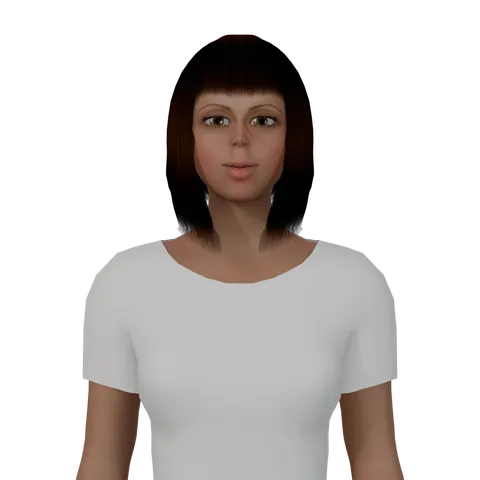
In the app, open Live stream from your projects. On the Host tab, choose a 3D character, a language and a voice, then press Play to hear it.
-
Step 03
Set the scene and the show
On the Scene tab, put a picture, a video, a website or a 3D place behind the host. On Show and Notes, tell it what the show is about.
-
Step 04
Copy the stream key
In Studio’s Go live page, open Stream, create a new stream key and choose HLS. Copy the key or the whole Stream URL, paste it into the app and press Save.
-
Step 05
Copy your live link
Still in Studio, press Share and copy the link. Paste it under Live video link in the app and press Check: the host reads the chat from it.
-
Step 06
Check Studio’s settings
Make the stream Public or Unlisted, keep live chat on and answer No to Made for kids. Turn on Auto-start, or press Go live in Studio once the video arrives.
-
Step 07
Do a test run (optional)
On the Notes tab, use Ask the host: it answers a viewer’s question out loud, free, up to 40 times a day. To test YouTube too, stream as Unlisted for a minute.
-
Step 08
Go live
Press Go live in the app. Keep the computer on and the tab open: closing it ends the show. Viewers see you 15 to 30 seconds late.
Your live link
Where to find your live link.
YouTube gives every stream its own video and its own link.
- Before the show: in Studio’s Go live page, press Share and copy the link.
- In the app, once you press Check, the “Your live link” card shows it, ready to copy.
- During the show: press Watch under the stage in the app.
- On a public stream, youtube.com/@yourchannel/live opens it while you are live.
- Next show: open Studio’s Go live page first. YouTube makes the next stream’s link only then.
If it doesn’t work
Fixes for the usual problems.
-
The key is refused
An RTMP key or address is refused. In Studio, create a new stream key, choose HLS and paste that one.
-
The browser can’t go live
Open the app in Chrome or Edge on Windows or a Mac. Chrome on Linux can’t make the sound YouTube needs.
-
YouTube shows nothing
Turn on Auto-start in Studio, or press Go live there. Minutes that reached YouTube are charged; if YouTube never gets the stream, they come back.
-
The host ignores the chat
Check that the link is this stream’s, the stream is Public or Unlisted, chat is on and Made for kids is No. If YouTube’s daily chat limit runs out, the host keeps going without the chat.
-
The link is refused
A link to a normal video or an ended stream is refused. Copy the new stream’s link from Studio.
-
It says your computer is too slow
Close other tabs and windows, then try again.
FAQ
Going live, answered plainly.
I have my stream key. What do I do next?
Paste it into the app’s Live stream panel and press Save. Then copy your live link in YouTube Studio’s Go live page with Share, paste it under the key, check that the stream is Public or Unlisted with Auto-start on, and press Go live in the app.
Where do I find my YouTube live link?
In YouTube Studio’s Go live page, press Share and copy the link. Every stream has its own link, so copy a new one for each show. In the app, the “Your live link” card shows it, and while you are live, Watch under the stage opens it too.
Why can’t I go live on YouTube yet?
The first time, YouTube can take up to 24 hours to turn live streaming on, and it asks you to verify your channel with a phone number. Open YouTube Studio, click Create, then Go live, a day before your first show.
Can I go live from my phone?
No. Live needs Chrome or Edge on a Windows or Mac computer, and the tab must stay open for the whole show. Phones, Firefox and Safari are not supported.
Should I pick RTMP or HLS?
HLS. Live sends the stream from your browser to YouTube over HLS, so an RTMP key is refused. In Studio, create a new stream key, choose HLS, and paste the key or the whole Stream URL.
What does it cost?
1 credit for each started live minute, from the same credits as your videos. The free plan’s 20 credits a month cover up to 20 minutes. You can start up to 30 shows a day, one at a time, and if YouTube never receives the stream, the minutes are refunded.
Ready when you are
Put a 3D host on your next live stream.
Pick a character, set the scene and paste your stream key.